
Scalable Vector Graphics, more affectionately known as SVGs, are an XML-based graphic format used to display images
on the web. Unlike PNGs, JPEGs, and GIFs, which are pixel-based formats, SVGs have their own coordinate system — using
a combination of points and math to recreate vector images in browsers.
SVGs are resolution independent, animatable, and scriptable. It’s essentially — but .

So if this file format is so versatile, why aren’t more web designers and developers incorporating SVGs into client
projects?
Because it’s not a part of their “muscle memory,” the tips and tricks they instantly refer to when approaching design
strategy.
Recently, we sat down with Chris Coyier — co-founder of CodePen, author of A Book
Apart’s Practical SVG, and creator of CSS-Tricks — for
a Shopify Partner Session webinar, where we
chatted about how web designers and developers can incorporate SVG elements into their design toolkits.
During his talk, Chris shared 10 ways you can (and should) use SVG. We’ve compiled five of these tactics into an
article to help you easily implement SVG objects into your next client project.
You might also like:
3 Essential Tips for Refactoring CSS Without Losing Your Mind
1. Create interactive charts and graphs to show data
Does your client have a lot of customer/service-related data, like how many hours a customer saved by switching to
their product? Or maybe how many services they’ve provided, per month, over the last year? Show your client the value
of displaying this data on their website, by creating charts and graphs using SVGs. They’re a quick way to impress
both your client and their audience. SVGs are easily animated, interactive, and can be used to plot any kind of data.
Because SVG files are composed of math, web designers and developers should use this file format to graphically
display analytical and numerical information – like tweets over time, or sales per month. You can use SVGs to create
straight lines, curved lines, and differentiate these items with different thicknesses, dashes, gaps, and colors.
Smashing Magazine has a great article
about using the Chartist.js — an open-source charting library — to create responsive charts.
Or you can refer to Chris Gannon’s Pen, outlining how to make an
interactive SVG chart:

Did we mention that SVG-based charts and graphs can be especially handy for tracking real-time data?
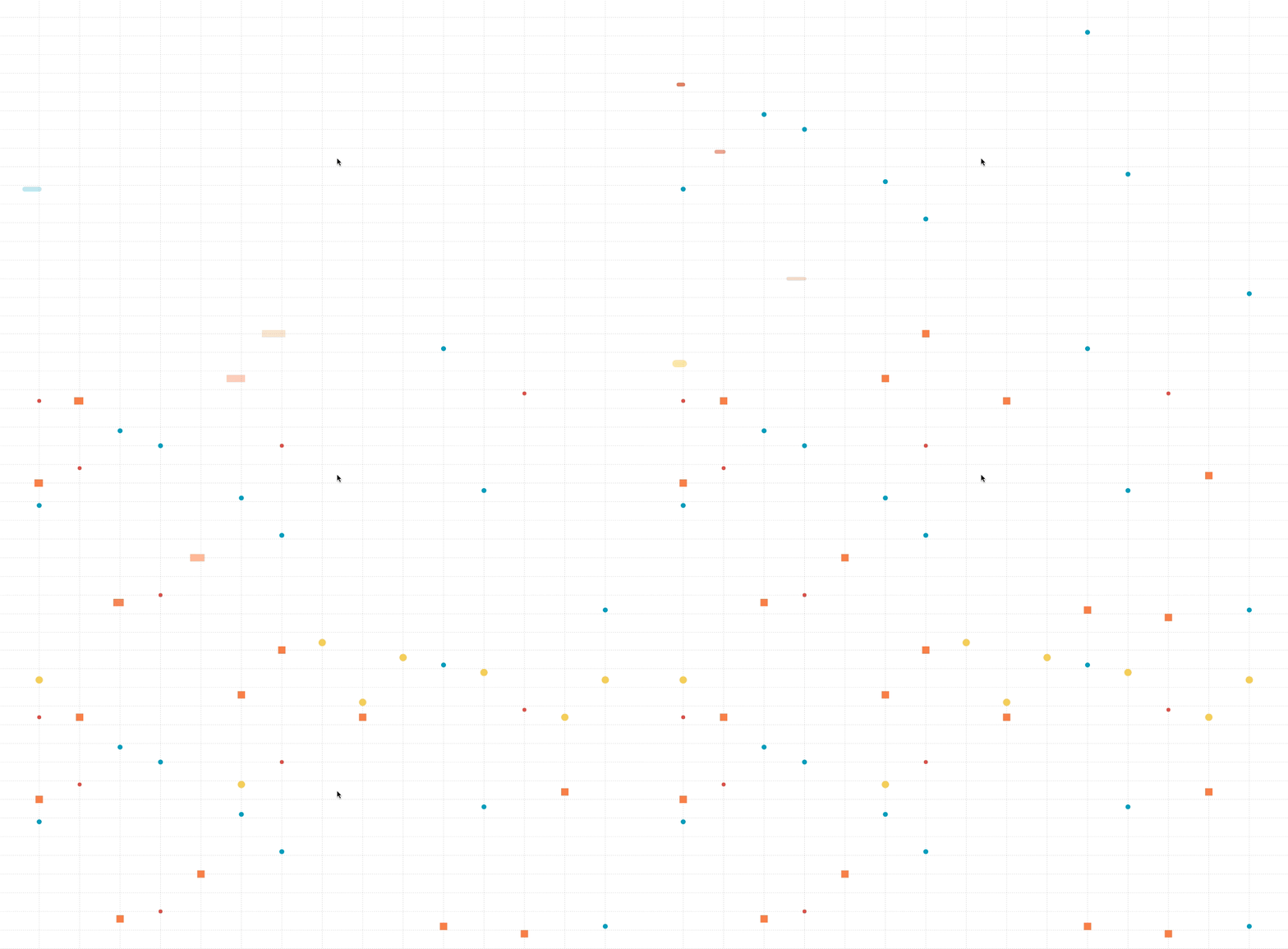
Apart from Chartist.js, there are multiple JavaScript libraries available to help with your charting needs. SitePoint
has compiled a list of 16 (mostly) free
charting libraries that you might find helpful. Whichever one you choose depends on which features are most
important to you – so try out a few to find the right one for your business/client.
2. Morph shapes to add engagement
Shape morphing adds pizzaz to websites or web pages needing a strong graphic element, and they’re a lot easier to
implement than you might think.
While you can animate SVG images using CSS, there are limitations, like not being able to animate any of the points
that define the actual shape/object. And though you can circumvent these issues using Synchronized Multimedia
Integration Language (SMIL), there is a much better (and
more powerful) tool available to web designers and developers: GreenSock’sMorphSVG Plugin.
Put simply, users can create multiple paths within MorphSVG and, with a single line of code, morph the object in path
one into the object in path two. MorphSVG also uses a
in the starting shape are mapped – giving web designers and developers more control over how their object is morphed
Next time you’re working on a client project, try doing some fun morphing animations with their logo (should brand
guidelines permit). Or, insert elements that your client’s audience can interact with (like this Tweenmax/MorphSVG
mash-up by Craig Point):
3. Draw and manipulate lines to give context
Line drawing using paths is one of the most powerful ways to use SVGs in client projects, as it is a functional,
scalable method to illustrate diagrams, workflows, product design, or any other visual representation in a way that is
digestible for site users. Essentially, line drawing animation tells
stories about your client’s business, product, or services and give context to the rest of the page’s content,
all by illustrating the intricate design of a product, or recreating a key moment in your client’s history.
An example of this is how Polygon uses SVG line drawing to replicate the PS4 for their initial review of the system:
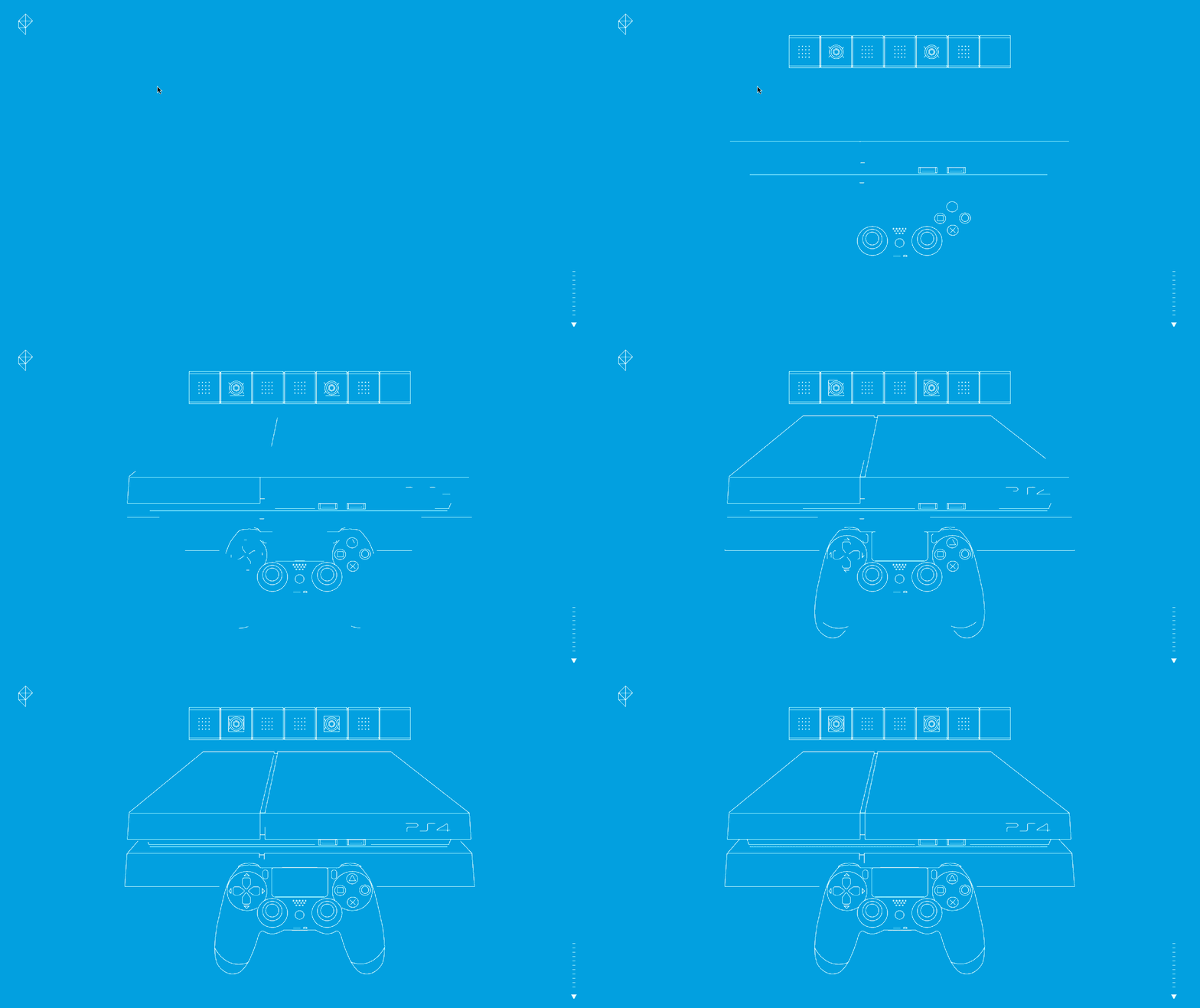
A more basic example demonstrating the capabilities of SVG line drawing is how Cory Norris uses SVG line drawing to
create a bear:
If you’re looking for more information regarding line drawing, Chris Coyier himself explains how SVG line animation works in a comprehensive article
for CSS Tricks. Or you can reference a blog post by Jake Archibald, designer advocate for Google, explaining animated line drawing in SVGs.
You might also like:
How to Build Amazing Web Design Animations — No Programming Required
4. Animate interfaces to connect processes
Pasquale D’Silva, animator and software inventor, believes that users of a website understand
things better when transitions are used. The reasoning being that transitional animations allow our brains to
easily connect processes or identify new pieces of information. One of the best examples of a transitional interface
is a load screen icon –it keeps moving to let users know that the website hasn’t stopped processing their request.
Transitional interfaces also create a more positive user experience for filling out forms. The transitions allow for
users to understand new changes in the form, making the process and workflow more streamlined (as per the example
below).
5. Use SVG icon systems for simplicity
Did you know that there is a specific
functionality is natively built into all internet browsers. Implementing an SVG icon system into your client’s
website, or even your own, is a quick win for performance. Noah Blon's pen has some beautiful examples of weather icons created with
SVG:

There are many reasons you should use vector icons in lieu of icon fonts and pixel-based images. They’re crisp, have
strong CSS control, and can easily match the size of the font around them. Compared to icon fonts, SVG icons are
significantly less frustrating to position, they’re easily accessible, and are less likely to fail.
Since SVG files aren’t supported in all (older) browsers, you can use Grunticon, which will automatically fallback to a PNG copy of your icon at any
time.
You might also like: How to
Upload and Animate SVG Icons in 3 Simple Steps
Final thoughts
Play around with SVGs. Read it, look at it, change it, love it. Then get excited about it, so that the next time you
can use SVGs, you do.
Want to learn more tips and tricks for improving your client projects? Make sure to check out the rest of our Shopify Partners webinar series.