
UI design tools have evolved so much that it can be overwhelming to decide on which one to pick. With the right UI design tools, you can create the optimal digital experience, increase customer engagement and retention, and lower development costs.
To help you narrow down your decision, we created a list of the best UX/UI design software (skip to the list) so you can choose for yourself.
But before we dig into the list, let’s cover some basics.
What is UI design?
On its simplest level, user interface, or UI, describes how a human interacts with a machine.
User interface (UI) design is the process of building interfaces in software or computerized devices, with a heavy focus on style and look. UI designers aim to create interfaces that users find easy to use and pleasurable.
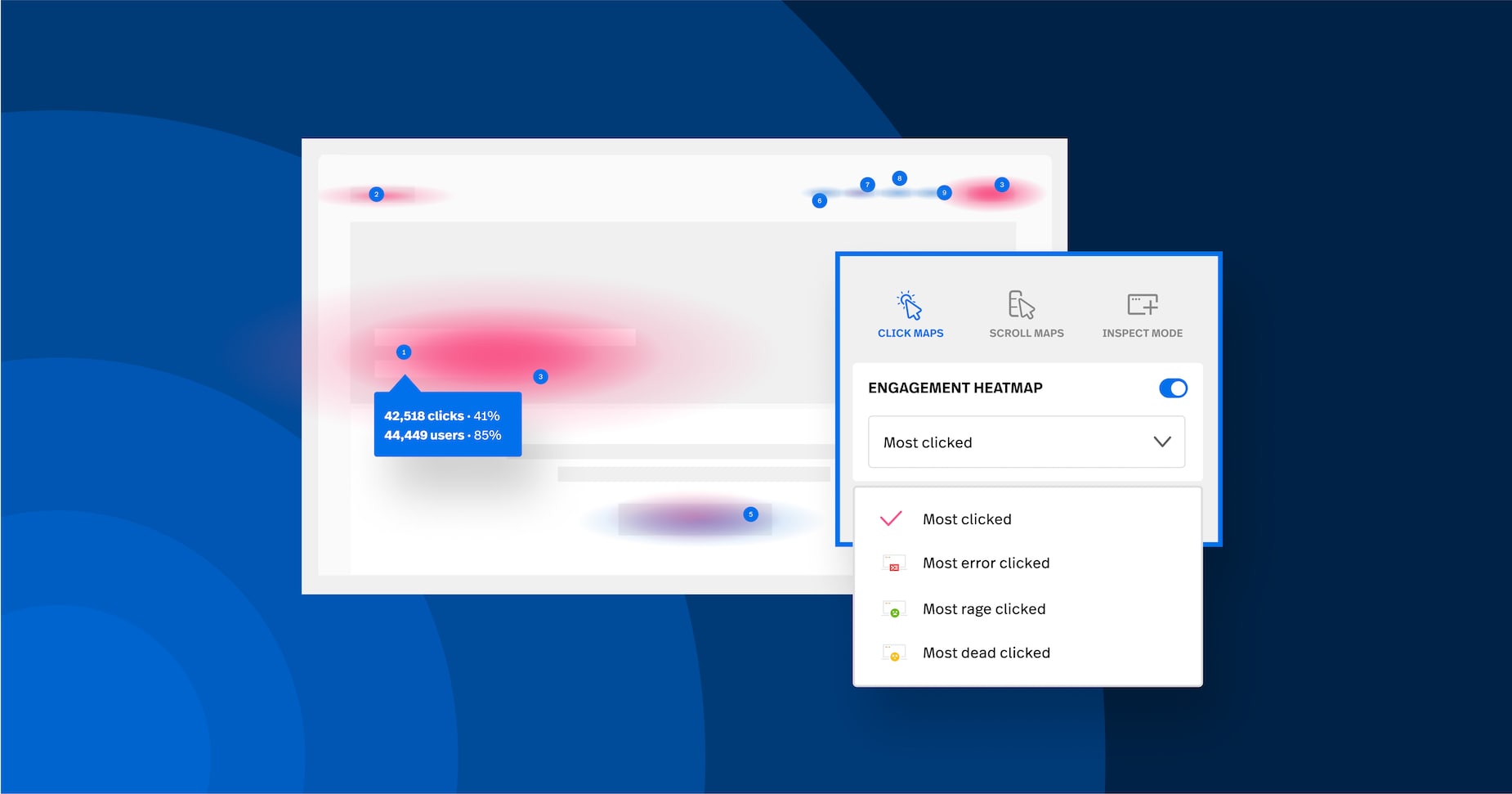
Validate your UI with real user sessions
Analyze design choices using actual interactions captured and stored for a full year.
✓ 30,000 free monthly sessions
✓ 12-month analytics retention
X No credit card needed
What are the 4 types of UI?
There are four common types of user interface to consider:
-
Command Line Interface: This UI requires users to type instructions into a command line. The computer is commanded to go to the required file or directory.
-
Menu-driven Interface: A UI that uses a list of choices to navigate within a program or website.
-
Graphical User Interface: A tactile UI input with a visual UI output (keyboard and monitor).
-
Touchscreen Graphical User Interface: This UI requires users to interact with the device by touch. It has become a commonly used option due to the popularity of portable devices.
Of the four types of user interface, the graphical user interface is considered the most popular, followed by touch screen, due to simplicity and ease of use.
Graphical user interfaces are easier for most end-users to understand as the icons and menus are generally self-explanatory and the GUI does not require the user to remember or input complex commands.
Why do you need a UI design tool?
If you are in business, own a website, or are trying to succeed by launching a product or service, you need UI design—which means you need UI design tools.
Your UI or UX design tool works towards the same goal: helping you make beautiful and engaging digital websites and mobile apps. The tools chosen here are all a part of the product design process, which includes:
-
Wireframing: a two-dimensional skeletal outline of a webpage or app.
-
Prototyping: an experimental process where design teams implement ideas into tangible and presentable forms.
-
User testing: a standard part of the web design process with the goal to uncover any usability issues with the navigation and core features of the app.
-
Visual design: elements carefully placed to create interfaces that optimize user experience, support mobile app optimization, and drive conversion.
-
Optimization: tested designs that enhance and engage better conversions.
-
Release: launch of tested and approved product or web design.
It’s important to understand the difference between UI and UX when assessing what tools you’ll need.
To put the UI/UX distinction in very simple words, UX design is about creating digital products that are intuitive and function well, while the aim of UI design is about making the product aesthetically pleasing.
How do you choose the right UX/UI design tool?
Unfortunately, there is no magic design tool that fits all needs and purposes. However, there are a lot of tools that can help both UX and UI design. Both functionality and pleasure play a big role in your design.
Here are a few questions to ask yourself when you set out to choose the right design tool:
-
How easy is this tool to use for my team?
-
How quickly can we adapt this tool?
-
How much money will this tool cost, monthly or yearly?
-
How does this tool incorporate collaboration with other teams?
-
How does this tool integrate with other UX/UI design tools?
And, of course, keep essential UX design principles in mind when you’re deciding which tool is best. It’s about making products that are informed by data and user feedback, designed with empathy and accessibility.
Here are our picks for the best user interface design tools to better your website or app.
The best UI design software to help you create great designs
1. Figma
Figma allows designers to construct interactive models and representations, evaluate them for practicality, and keep the group up-to-date with the design development.
Pros of Figma
-
Easy collaboration for designing
-
Using third-party plugins is helpful
-
Pen tool in it easy to use to make icons
Cons of Figma
2. Sketch
Sketch is another legendary design tool that is well-known in the industry.
The digital design tool has made universal changes to their layer or text styles, and library of symbols. When it comes to usability, it’s considered smooth and intuitive. Sketch boasts that it saves designers time to deliver consistent prototypes. It alleviates tedious tasks with a multitude of third-party plugins that integrate without lagging, and their understanding of collaboration is apparent throughout the tool design.
Pros of Sketch
-
Highly-intuitive user interface
-
Accessible and easy to use
-
Sharing and collaboration features.
-
Integrates with Illustrator assets.
Cons of Sketch
3. InVision
InVision is a dynamo in the industry as well and offers a full suite of applications, providing designers the UI design tools needed to create fully functional prototypes with dynamic elements and animations.
InVision makes communication easy with collaboration features and easy-to-use UI design tools for the whole team. Developers can share their work as they design it in real-time, and receive feedback, which makes documented changes extremely easy. A very cool feature is the digital whiteboard allowing team members to get their ideas heard, and seen for sign-off before moving forward.
Pros of InVision
Cons of InVision
4. Proto.io
Proto.io has been around since 2011, as a commercial web platform providing prototype development for smart devices. It has since then expanded to be a dynamic framework to accommodate multiple devices.
Proto.io prides itself in creating “prototypes that feel real.”
Pros of Proto.io
-
Easy to get started with a good set of UI controls
-
Presentable prototype on mobile devices
-
Responsive design on site
Cons of Proto.io
5. Craft
Craft is a plugin from InVision that seamlessly works with any design, including a sync function that updates real-time. Craft offers design features that excel prototyping and collaboration. The team has evolved updates in styling, edits, and other responsive design integrations over the years to make this a viable contender.
Designers get access to easy placeholder content with integrations like Getty and iStock photos, giving you access to better visuals. Not many UI design tools let you fill your mockups with templates and captured content.
Pros of Craft
-
Get rapid feedback from your team in real-time
-
Link artboards with gestures and transitions
-
Sync with click-to-send prototypes
Cons of Craft
6. Maze
Maze is a rapid testing platform that powers designers to run in-depth tests, share ideas, concepts, or copy—even without prototypes. With Maze, designers can show work in every stage of the process. Extensive user insights can be gleaned from usability tests with open-ended follow-up questions, which brings designers and real users more closely aligned than ever.
Maze also offers multiple integrations, partnering with third-party prototyping and wireframing tools. Pairing Maze’s testing features with these UI design tools offer positive design decisions.
Pros of Maze
-
Excellent tool for an agile environment
-
Very intuitive for first-time users
-
Templates make it easy to create impactful designs
Cons of Maze
7. Axure
Axure is a UX tool that gives UX professionals the power to build realistic, functional prototypes. It features a smooth interface and many other features of popular prototyping and UI design tools. It is designed for testing functionality and pulls together presentations for an easy developer handoff. Axure boasts an emphasis on communication and collaboration, to ensure a project is kept up-to-date with progress and changes as they happen in real-time.
Pros of Axure
-
Offers tons of options for UX prototyping
-
Ease of use, prebuilt functions, third-party libraries, the online Axure user community
-
Simulation helps a lot when presenting a product to the client
Cons of Axure
8. Marvel
Marvel (the design tool, not the superhero comic) is great for UI designers or if you’re just starting the role, Marvel’s design platform does projects easily with the ability to create both simple and complex wireframes, the design process is endless. It also offers interactive prototypes, and user testing, which gives a UI designer everything needed to present and impress.
Pros of Marvel
-
Ease of use—no prior technical knowledge is needed
-
Transitions and graphics can be added to prototypes
-
The application service is available on all major platforms
Cons of Marvel
9. Framer
Framer is a free interactive design tool for teams and has evolved from a code-only prototyping application. It offers a slew of UI design tools for building applicable and functional prototypes as well as offering usability testing.
Framer offers a variety of plugins, providing UI designers features such as UI kits for integrating social media, players for embedding a variety of media, prototyping grids, and other useful integrations. Its reviews boast that it has an intuitive interface design that an entire team can pick up with ease.
Pros of Framer
-
Good at prototyping interactions and animations
-
The flexibility and logic-based interactions are limitless
-
It is extremely flexible with motion design
Cons of Framer
-
Hard to get going and requires some coding knowledge
-
Written in a language of its own, which can be difficult to pick up
10. Webflow
Webflow provides an easy-to-use platform for the imaginative user to construct a virtually limitless number of designs without needing to write complex code.
Pros of Webflow
-
Extensive customization options
-
Plenty of support materials and learning academy is strong
-
Great for client work (easy billing)
Cons of Webflow
11. FlowMapp
FlowMapp was formed in 2017 and is a UX software that includes features such as mobile, websites, usability testing, user journeys, and user research. FlowMapp creates interactive sitemaps and user flows for web development and better UX. It offers a collaborative environment for storing and organizing requirements through intuitive visual sitemaps.
With its dedication to the discipline of UX design, FlowMapp builds user flows and constructs visual sitemaps that are imperative for UX, and these make for a fine design tool.
Pros of FlowMapp
-
Offers robust built-in templates
-
Enables collaboration among multiple stakeholders, enabling team members to flag changes or specific pages for review
-
Maps content to customer journey stages
Cons of FlowMapp
12. Balsamiq
Balsamiq offers an approachable way to construct basic wireframes with a straightforward interface.
Pros of Balsamiq
-
Very easy learning curve and good standard setup
-
Non-technical users can easily use this software
-
It offers an icon-driven and drag-and-drop UI
Cons of Balsamiq
13. UXPin
UXPin is a code-based design tool that merges design and engineering into one unified process. UXPin is the design tool ideal for interactive prototyping, design systems and documentation. Some features include variables, conditional interactions, expressions, interactive states, and data generator.
UXPin doesn’t require extensive training to start designing. Their modern and intuitive editor helps to perfect user experience without leaving the app. You can build prototypes that feel like the real thing and anything that’s on the web can be accurately prototyped in UXPin.
Pros of UXPin
Cons of UXPin
14. Origami Studio
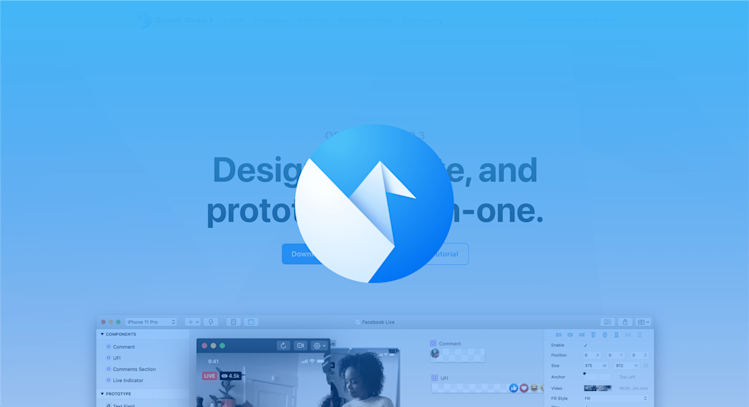
Facebook designers created Origami Studio to make it easier for newcomers to easily navigate the more complex features.
Pros of Origami Studio
-
Unlimited Storage for all file types
-
Co-design together real-time with designers on my team
-
Unlimited Previews (no charge for reviewers)
Cons of Origami Studio
-
The learning curve is steep
-
Not suitable for large, multi-screen prototypes
-
Inserting large files may cause performance issues
15. Treejack
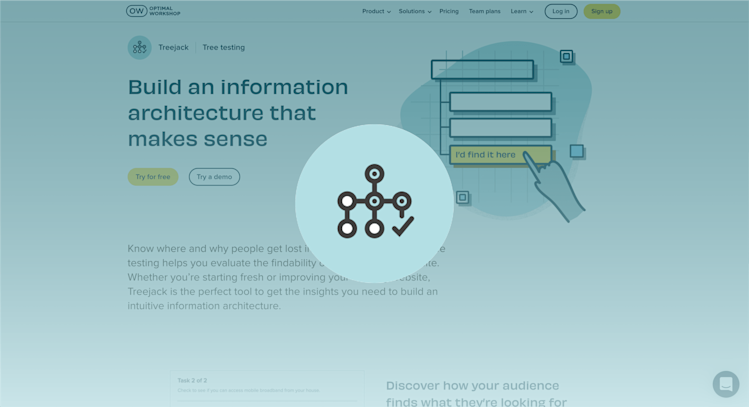
This platform facilitates smoother cooperation among members through comments, video responses, and connections to popular testing applications.
Pros of Treejack
-
Good for freelancers to large enterprise
-
Treejack is available for free and as part of a suite
-
Deployment in the cloud and desktop