



Don’t know how to hide theme details in WordPress? Then you’ve landed in the right place.
While you use a WordPress theme to build a WordPress site, it usually comes with a copyright footer that includes the theme’s name.
Hiding your theme details protects your site from being vulnerable to hacking. Thus, this article gives you a detailed guide to hiding theme details in WordPress using different methods.
Let’s get started with the necessity of hiding theme details in WordPress.
Why is it Necessary to Hide Theme Details in WordPress?
Using pre-made WordPress themes for your website is perfectly fine. However, each theme comes with a unique name that often appears in your site’s footer by default.
While you might want to credit the theme, there are several advantages to removing its name. Ultimately, it’s about maintaining your website’s clean and polished look.
Let’s look at a few of them:
- To Create your brand presence: When your business goes online, the sole focus should be promoting your brand rather than the theme provider. So, remove the theme name to help visitors become familiar with your business and not other brands.
- For Personalization: Removing the copyright footer from the WordPress theme allows you to create a customized look. Your audience will recognize your brand instead of the theme company.
- To maintain professionalism: Your site looks more professional if you add your custom link to the footer without the theme name.
- For security: Removing the theme name from the footer lessens the chances of hackers breaking into your site since they won’t know that your site is built on WordPress.
If you’re not sure whether it’s legal to rename the theme name or details, then let’s tell you that WordPress is open-source software. Therefore, it’s totally fine to hide the details of the WordPress theme.
Is it Legal to Remove Proudly Powered by WordPress Footer Link?
Yes! It’s legal to remove the copyright footer from the WordPress theme. Since WordPress is an open-source platform licensed under the GNU-GPL License, it’s free to use, modify, distribute, and redistribute.

That means you can make changes to the header, footer, or any page of your WordPress site.
WordPress doesn’t consider that to be breaking any law or illegal. Hence, you can legally modify the WordPress themes and templates.
If you’re using default WordPress themes like Twenty-Twenty-Three, you might find a copyright that says, “Proudly Powered by WordPress.”
For other themes, you might see the theme name or the company that built the theme. And it’s legal to remove Proudly Powered by WordPress and the theme name.
Now that we understand the importance of hiding theme details let’s examine the methods of hiding theme details in WordPress.
How to Hide Theme Details in WordPress Footer?
Below, we have mentioned three methods to hide theme details in WordPress. Hene, you can use the one that is feasible for you.
Method 1: Remove the Theme Name from the WordPress Footer Through Theme Customization
The first method to remove the theme name from the WordPress footer is to use the customization tool, which is available on your WordPress dashboard.
Here’s a step-by-step process for using the tool. For this tutorial, we’ll use the theme Zakra.
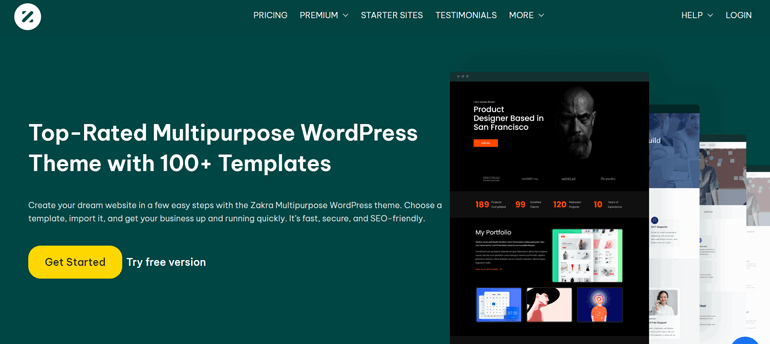
Zakra is a popular multipurpose theme suitable for any type of niche WordPress website. It has 130+ demos that you can import with a single click.
Below are some of the key features of Zakra:
- Highly customizable: Zakra has a fully customizable interface. Hence, you can customize it according to your requirements.
- Translation-ready: Build a multilingual WordPress site effortlessly with the help of Zakra.
- Seamless WooCommerce integration: It offers WooCommerce integration so that you can easily create an eCommerce site.
- Responsive design: With Zakra, your website will look great on every device, including mobile phones, laptops, tablets, and so on.
- Compatible with page builders: Easily create pages of your choice with popular page builders like Elementor and more.
Now that we know how multi-purpose this theme is, all there’s left to do is install and activate the theme.
After you activate the theme, import a theme demo of your choice. Now, if you preview your website, you can observe ‘Powered by Zakra and WordPress’ written at the footer.
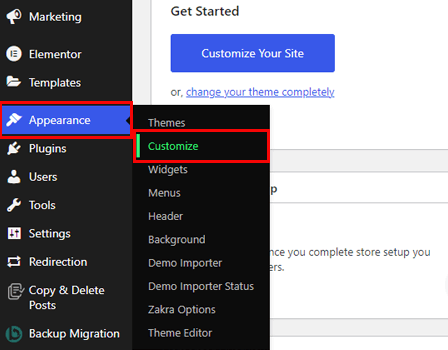
Using the theme customizer, you can either completely remove it or replace it with something else. To do that, go to Appearance >> Customize from your dashboard.
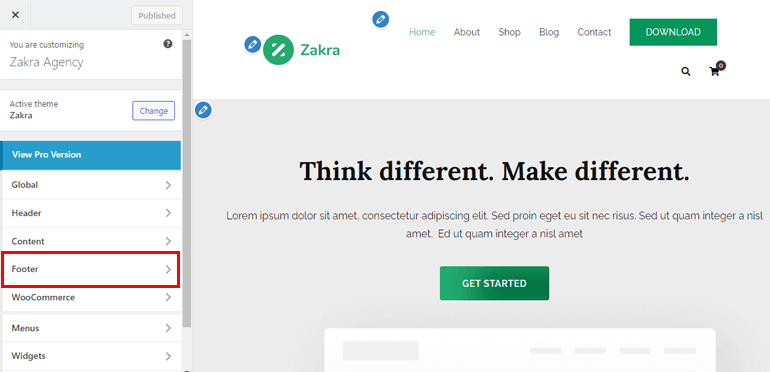
It takes you to the theme customization page. From the menu options, select Footer.
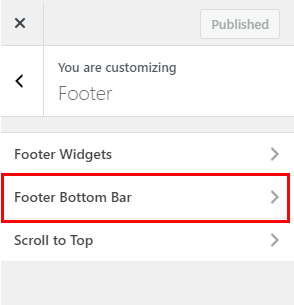
Further, you’ll find three more options. Simply click on the Footer Bottom Bar.
Now, scroll down to Column 1 and click on the drop-down menu. If you want to remove the footer credit section, then click on the None option.
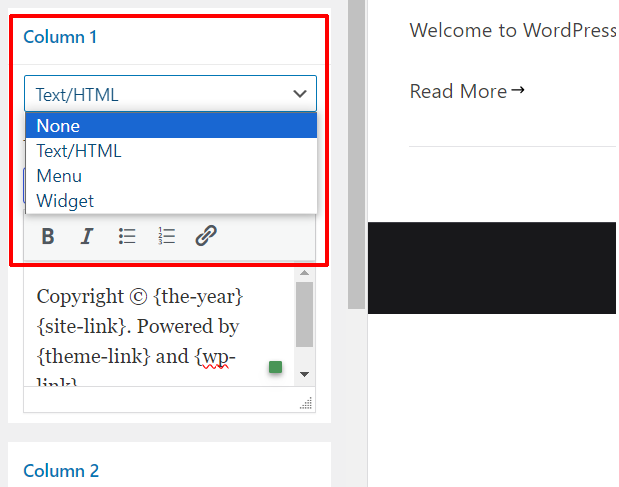
However, if you want to modify the footer credit section, select Text/HTML and add your copyright content.
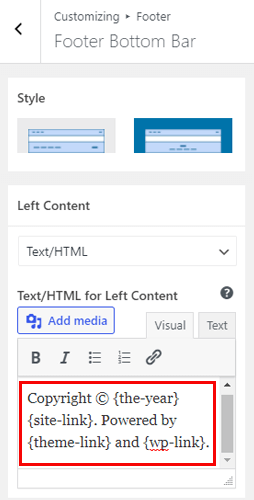
Lastly, hit the Publish button at the top to save all the changes. Thus, you’ve successfully removed the theme name from your WordPress site.
You can now check it out by visiting your WordPress site. You’ll see no theme name.
Method 2: Remove Powered by WordPress from the Footer In the WordPress Block Theme
The next method to remove the theme name from your WordPress site’s footer is especially for block theme users.
Block themes, also known as Full Site Editing (FSE), consist of templates made entirely of blocks. They were introduced along with WordPress version 5.9 with the sole intention of making the theme fully customizable
After you complete importing the demo, visit your WordPress dashboard and navigate to Appearance >> Editor.

Now, you’ll see a new interface, which is an editor. Scroll down below until you get the copyright information with the theme name.
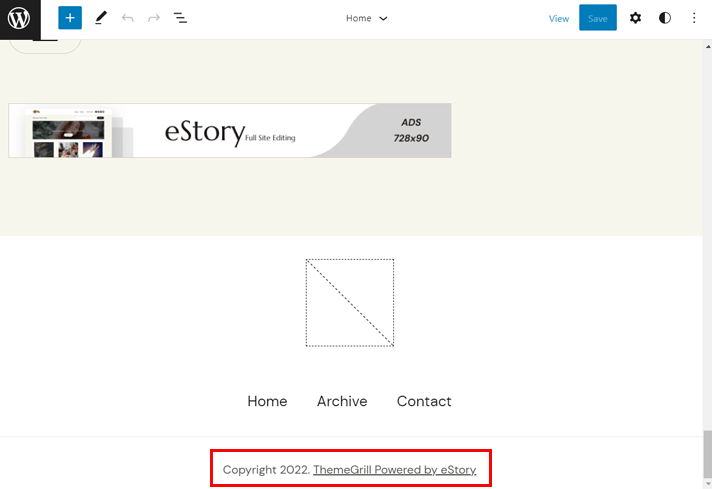
Simply hover on the footer and click on it. You can now edit the footer right from the editor.
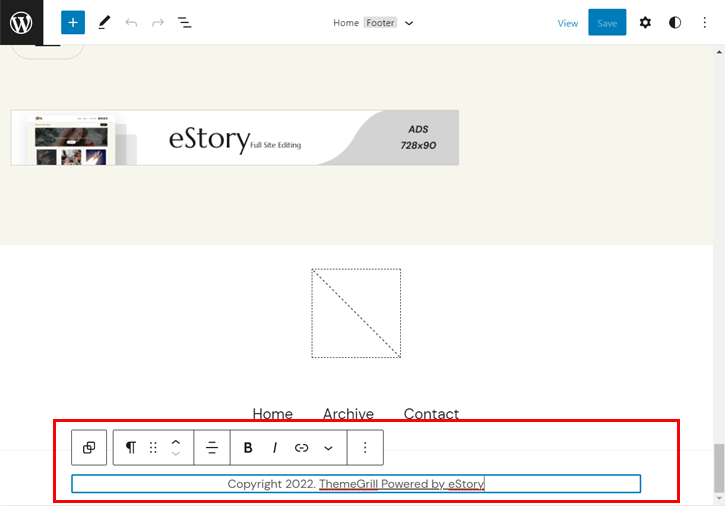
You may remove the footer completely or the theme name. It’s your choice. Once you complete editing, hit the Save button at the top of the page.
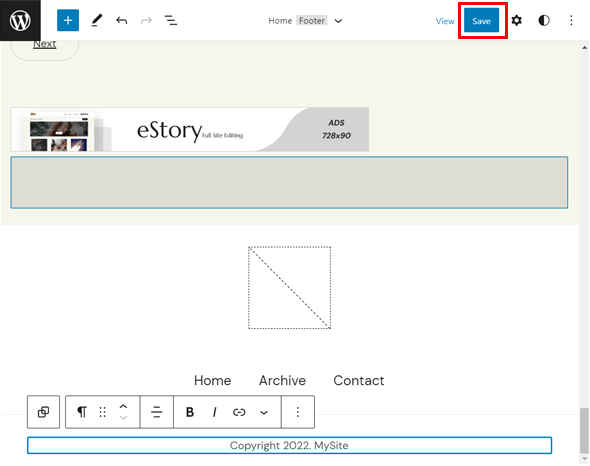
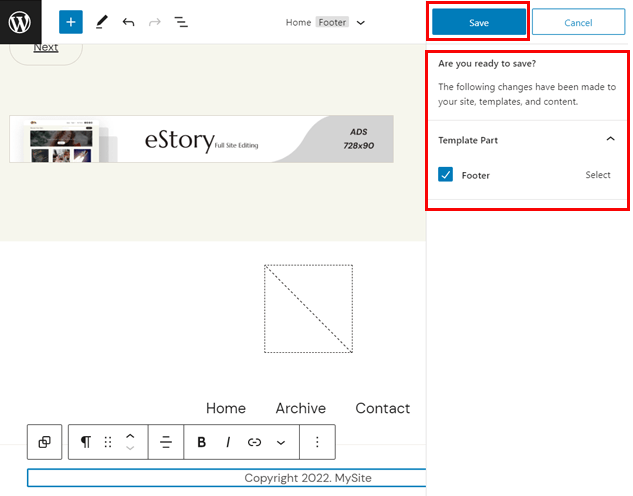
It then shows a dialog asking if you’re sure about the changes made. Hit the Save button again if you’re happy with the changes. Otherwise, you can also cancel them.
You can now go back to your dashboard and visit your site. It’ll no longer display the theme name on your website.

Thus, if you have installed a block theme on your website, you can easily remove the theme name using the block editor. It’s really quick and easy.
Method 3: Hide Theme Details in WordPress Footer Using Plugin
The next method to hide theme details in WordPress is using a WordPress plugin. If you’re a WordPress enthusiast, you must understand the importance of WordPress plugins.
Simply put, a WordPress plugin allows you to add extra features to your WordPress website. There are thousands of plugins available for pretty much every purpose. Likewise, plugins to edit the WordPress footer are also out there.
However, the problem is there are too many options. We suggest you try one of the popular plugins, Remove Footer Credit.

This plugin has 90,000+ active installations. Additionally, it’s easy to use and has a beginner-friendly interface.
Install Remove Footer Credit Plugin
First thing first, you need to install the plugin. So, go to Plugins >> Add New from the sidebar of your WordPress dashboard.

You can install the free version of this plugin right from the dashboard. Search Remove Footer Credit on the search box. Now, Install the plugin. Finish the process by Activating the plugin.
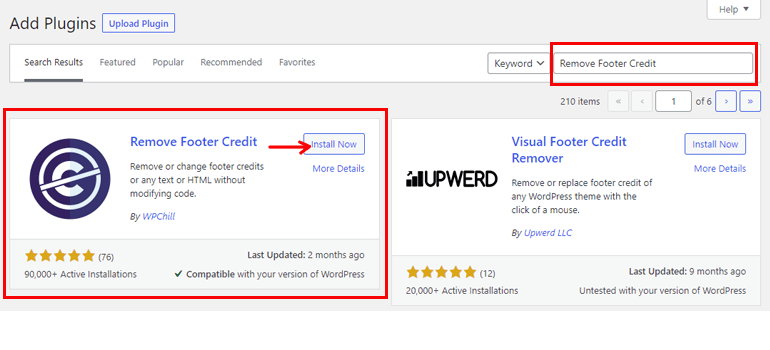
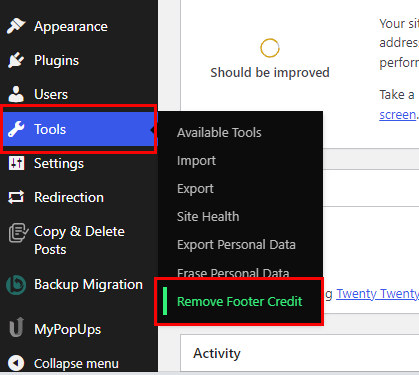
Now, go to Tools and select the Remove Footer Credit option.
You can remove the footer credit in just two steps. On the first step, enter the text or HTML that you want to remove i:e Proudly Powered by WordPress. Correspondingly, on the second step, enter the footer credit you want to display.
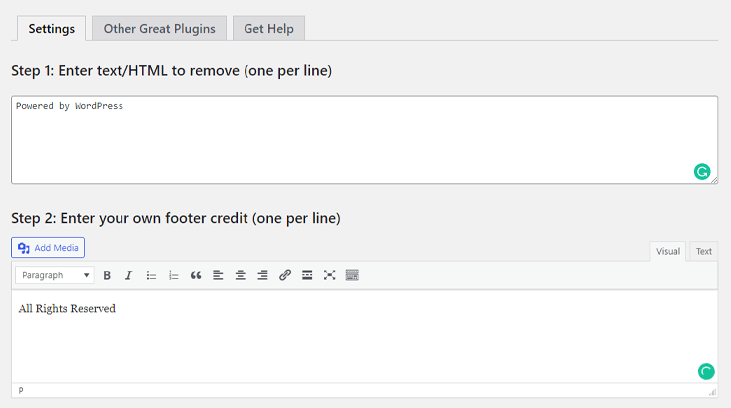
Lastly, click on the Save button located at the bottom.
Method 4: Manually Hide Theme Name in WordPress
The last method of hiding theme details in WordPress is manual. If you’re not tech-savvy, this method might not be your cup of tea.
Hence, feel free to choose any one of the above methods. Nevertheless, we’re here to help you learn something new today.
You can use cPanel or FTP for this method. FileZilla is one of the best FTP clients on the market, so we’ll use it in this section.
First, download FileZilla on your computer and open it. Then, fill out the Host, Username, and Password credentials. Lastly, hit the Quick Connect button.

On the left panel, you can see all your local files. Likewise, all your site’s files are located on the right panel. Now, find and double-click the public_html and then wp-content folders from the right panel.
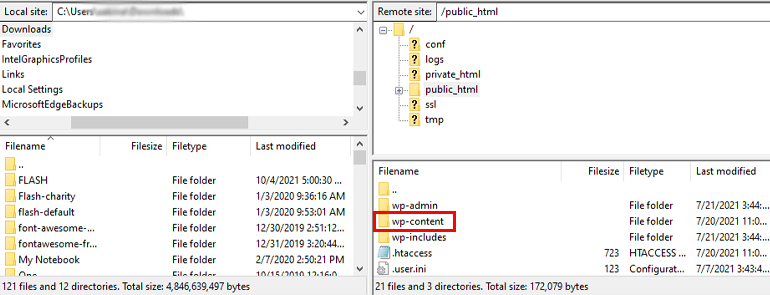
Next, select the themes folder.
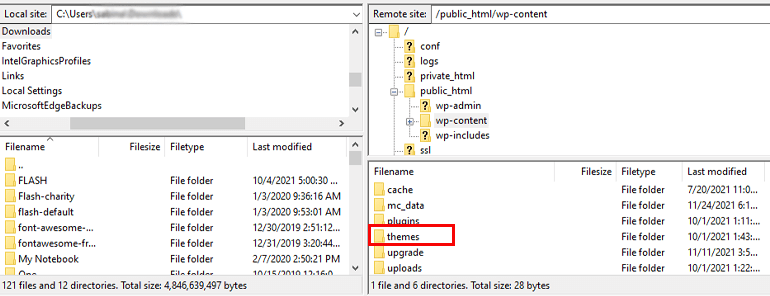
In this folder, you can find the themes you’ve installed on your WordPress website. Hover over to the active theme on your site (Zakra), then right-click and select the Rename option. You can rename the theme folder as you wish.
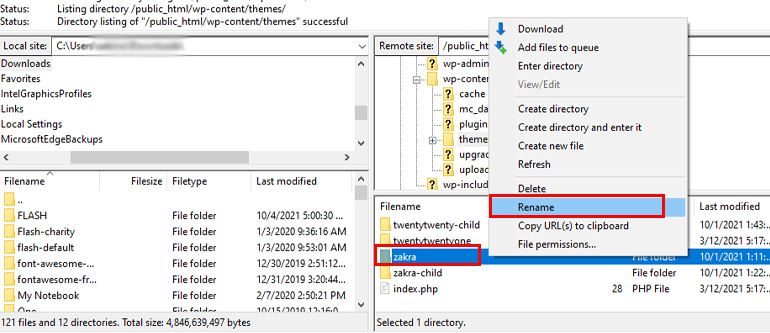
Thereafter, open the newly named theme folder. Search for the Style.CSS file, then right-click on it and select the Edit option.
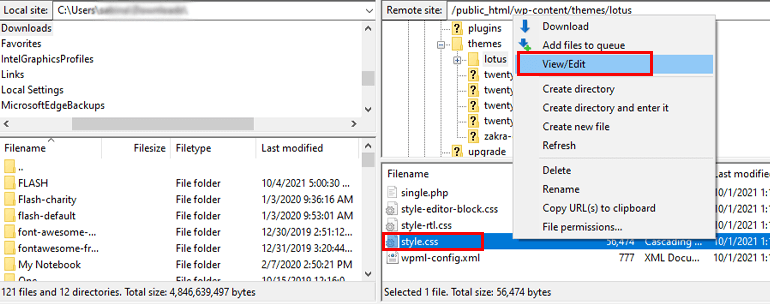
Now, rename the Theme Name of your choice and click the Save and Close button.
To check if the name has been changed or not, go to your WordPress dashboard. Navigate to Appearance >> Themes and look at the theme folder name.
Method 5: Hide Theme Details in WordPress With Whitelabel
Whitelabel is yet another method to hide theme details in WordPress. This method is specifically for developers.
For example, a client wants a developer to create a WordPress website. The developer can use a pre-built template instead of creating a site from scratch.
We know that theme details and theme names are visible on pre-built themes. Therefore, developers can use the Whitelabel method to hide the theme name and make clients believe the site has been created specifically for them.
Whitelabel allows developers to conceal product information to make the website more professional.
Below are the benefits provided by Whitelabel
- Hides theme author
- Allows to create a customized login page and dashboard
- Allows to personalize the back-end and much more
One of the easiest ways to whitelabel clients’ sites is to use a plugin. Quite a few plugins are available on the market. We suggest using the White Label CMS plugin.
This plugin enables you to add the client’s brand to the admin bar, header, and footer. You can also create a simplified dashboard for your client and add personalized menus.
Install White Label CMS
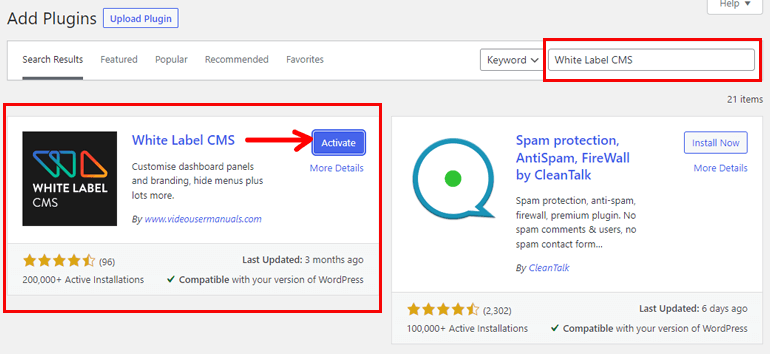
To begin with, Install and Activate the plugin as instructed in the above method.
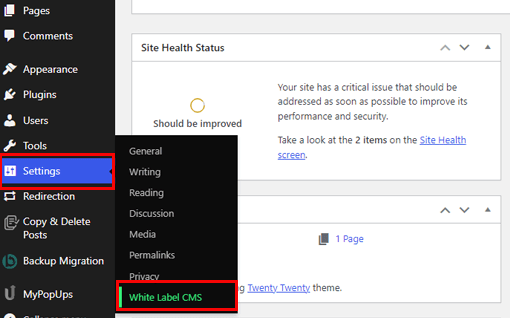
After the plugin activation, navigate to Settings >> White Label CMS.
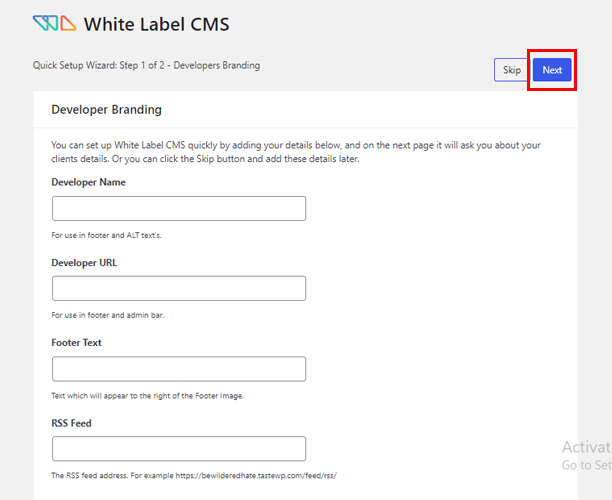
Next, it takes you to the Quick Setup Wizard page. You can add the Developer Name, Developer URL, Footer Text, and RSS Feed. Thereafter, select the Next button located at the top right.
In the next step, the plugin allows you to add the client’s Business Name and Login Logo. Finally, Save all the changes.
Configure White Label CMS Settings
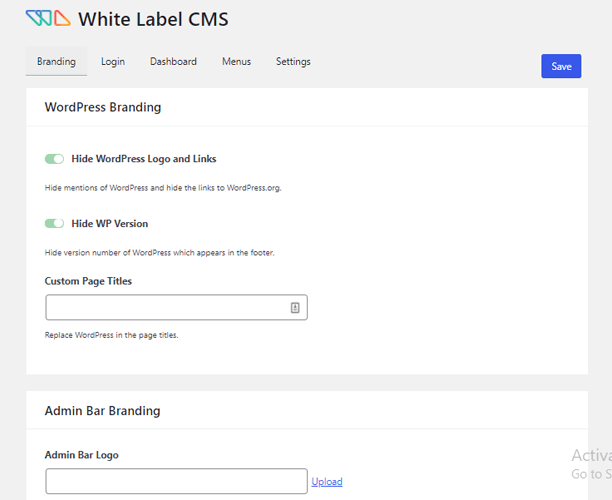
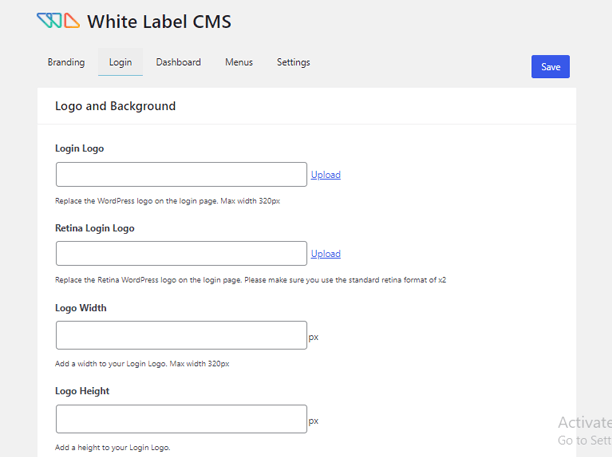
Then, on the next page, five more configuration options appear: Branding, Login, Dashboard, Menus, and Settings.
Under the Branding option, you can configure settings such as WordPress branding, Admin Bar branding, Side Menu branding, Gutenberg branding, and Footer branding. Adjust the settings as per your requirements.
The Login option allows you to configure all the necessary settings related to the Logo and Background. You can also add Custom CSS and JavaScript.
Likewise, with the help of the Dashboard option, you can configure Default Panels. Additionally, you can create a Custom Welcome Dashboard Panel and add your own RSS Panel.

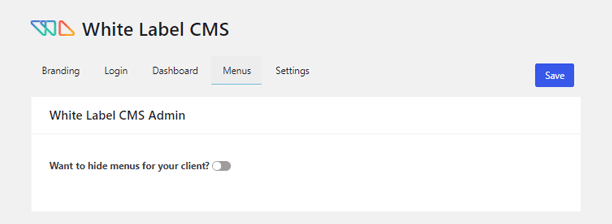
The Menus option enables you to hide the menus from your client.
Lastly, the Settings option allows you to configure Admin Bar, Admin Settings, and Messages. You can also add Custom CSS for Admin and Custom Editor StyleSheet.
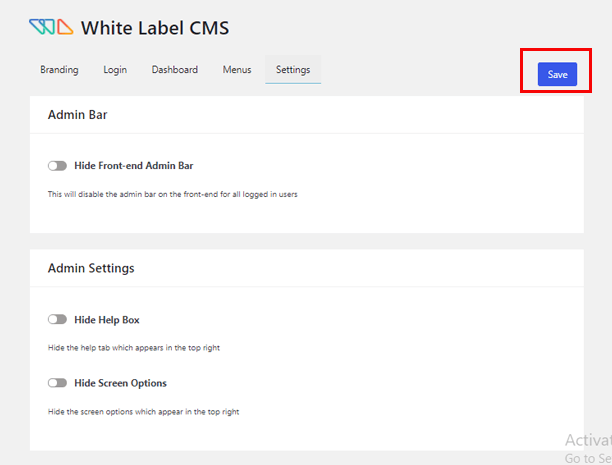
Remember to hit the Save button once you’re satisfied with the setting options, as shown in the above image.
And that’s how to hide theme details in WordPress. Doing so can make your site look more professional, enhance branding, and improve security.
Wrapping It Up!
That’s all about how to remove or edit proudly powered by WordPress footer links. Above, we’ve mentioned 5 different methods. Feel free to use any one of them.
Also, please remember that we’ve used the Zakra theme here. Zakra offers effortless theme customization options. However, the customization options and the process might be different for other themes.
In addition, we used the Remove Footer Credit plugin to hide the WordPress theme name. You can also use Whitelabel or hide the theme name manually.
Having said that, it’s finally a wrap. We hope this article was helpful to you. If it was, please take a moment to share it on your social media.
You can also follow us on X (formerly Twitter) and Facebook for future updates.
Disclaimer: Some of the links in the post may be affiliate links. So if you purchase anything using the link, we will earn affiliate commission.